Import Your Portfolio to ShareAlpha
Follow these simple steps to import your transaction history from Meroshare or TMS
Import from TMS
Login to your TMS
Log into your TMS trading account with your username and password.
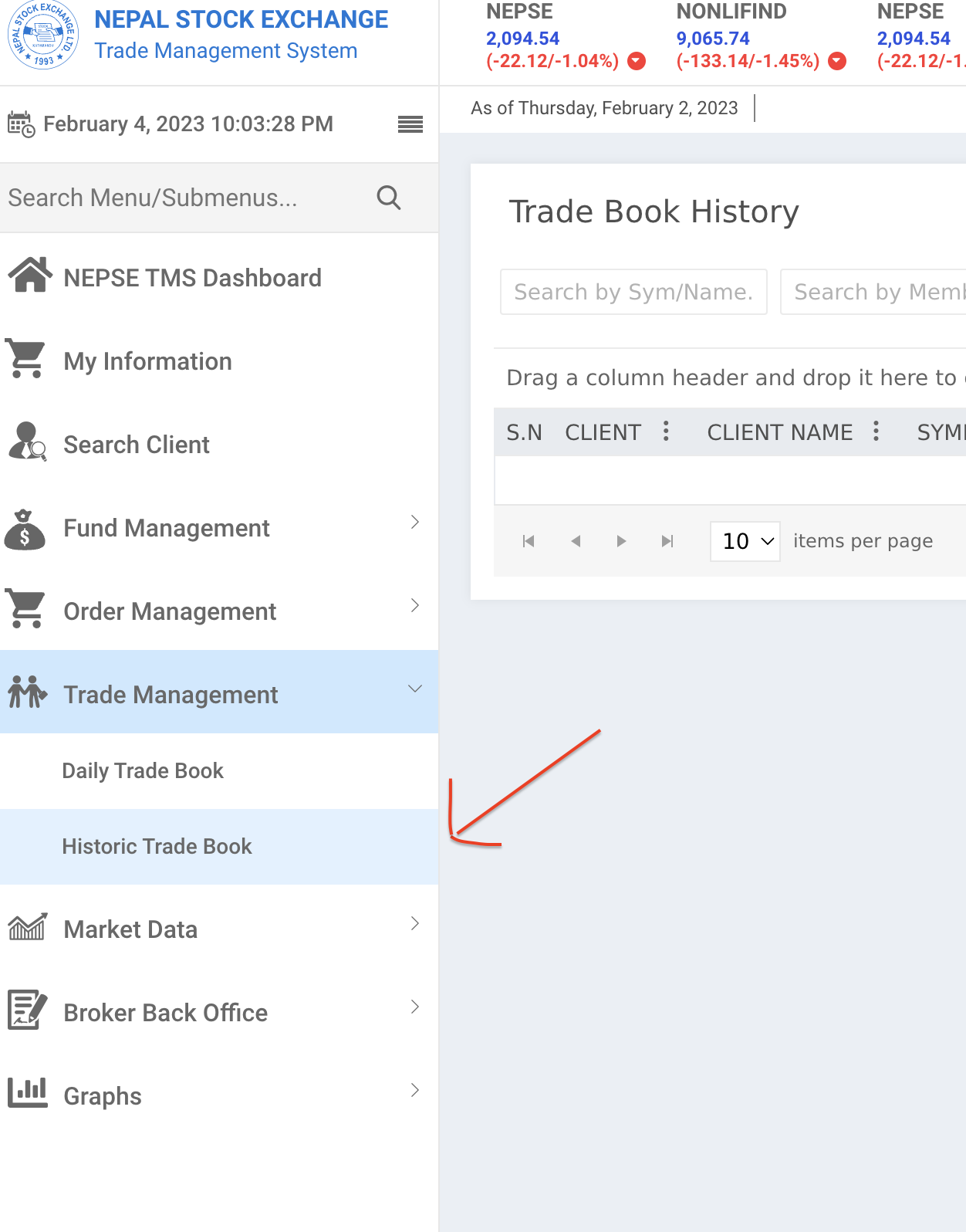
Go to Trade Management → Historic Trade Book
Inside TMS, open Trade Management and select Historic Trade Book.
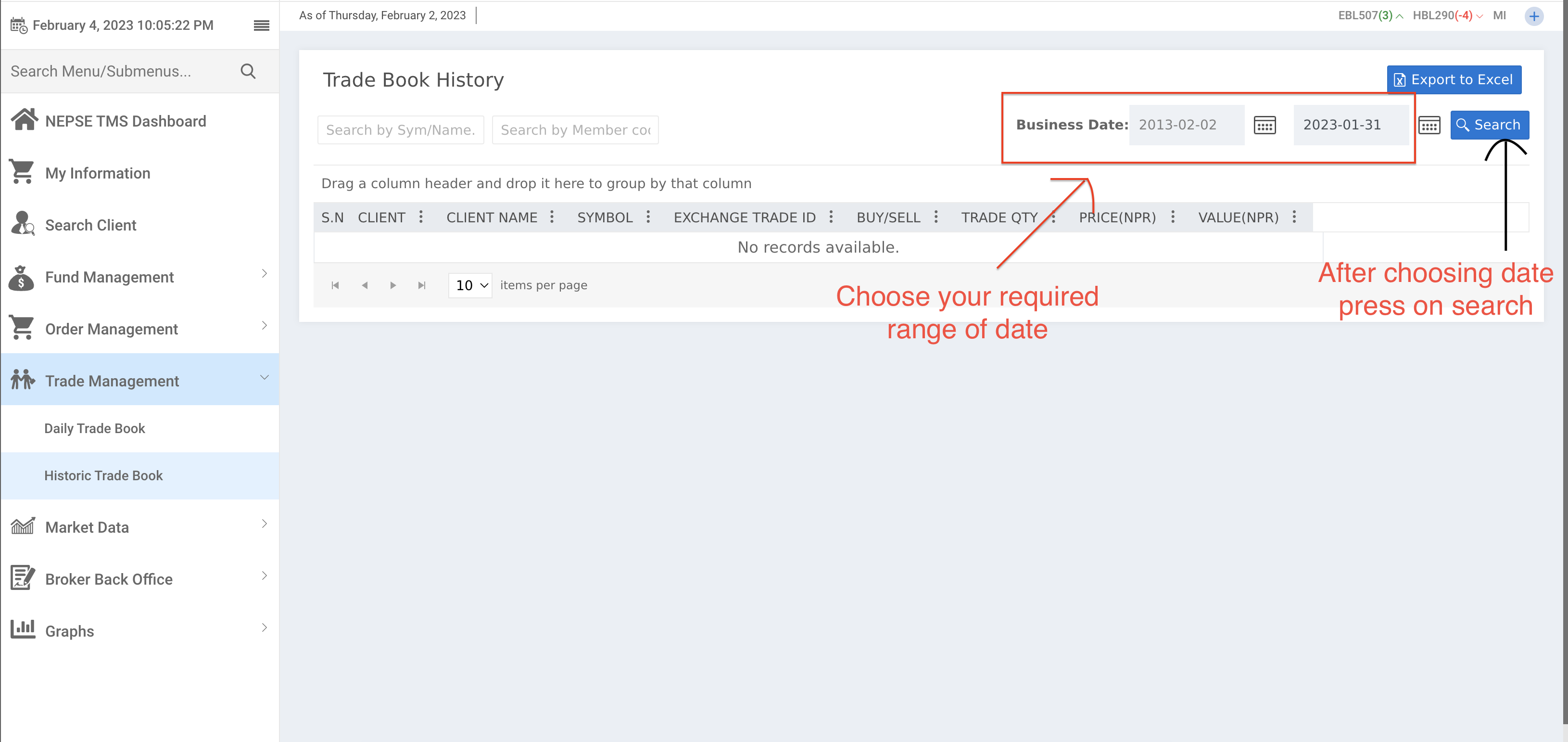
Select Date Range
Choose the start date (your first trade) and the end date (today).
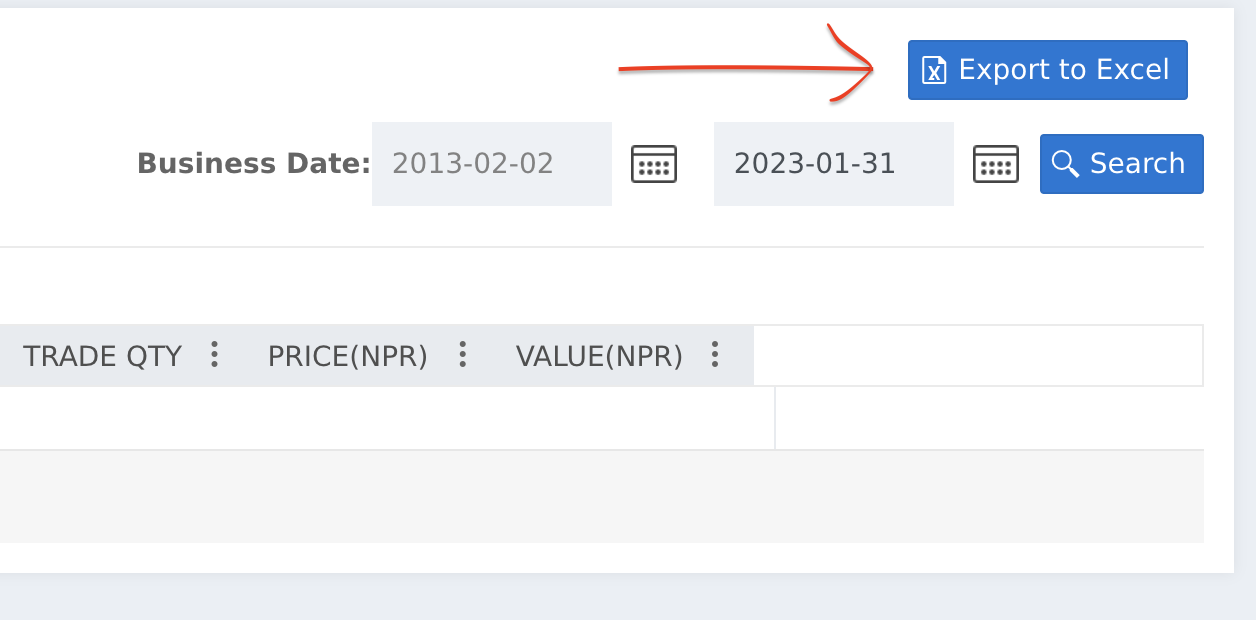
Export the Data
Click Search → Export to Excel. The system will download your file.

Import the Data
On ShareAlpha, use the 'Import All' feature or 'Import from TMS'.
All Set
Fix any missing prices or merger details, then complete the import.

Import from Meroshare
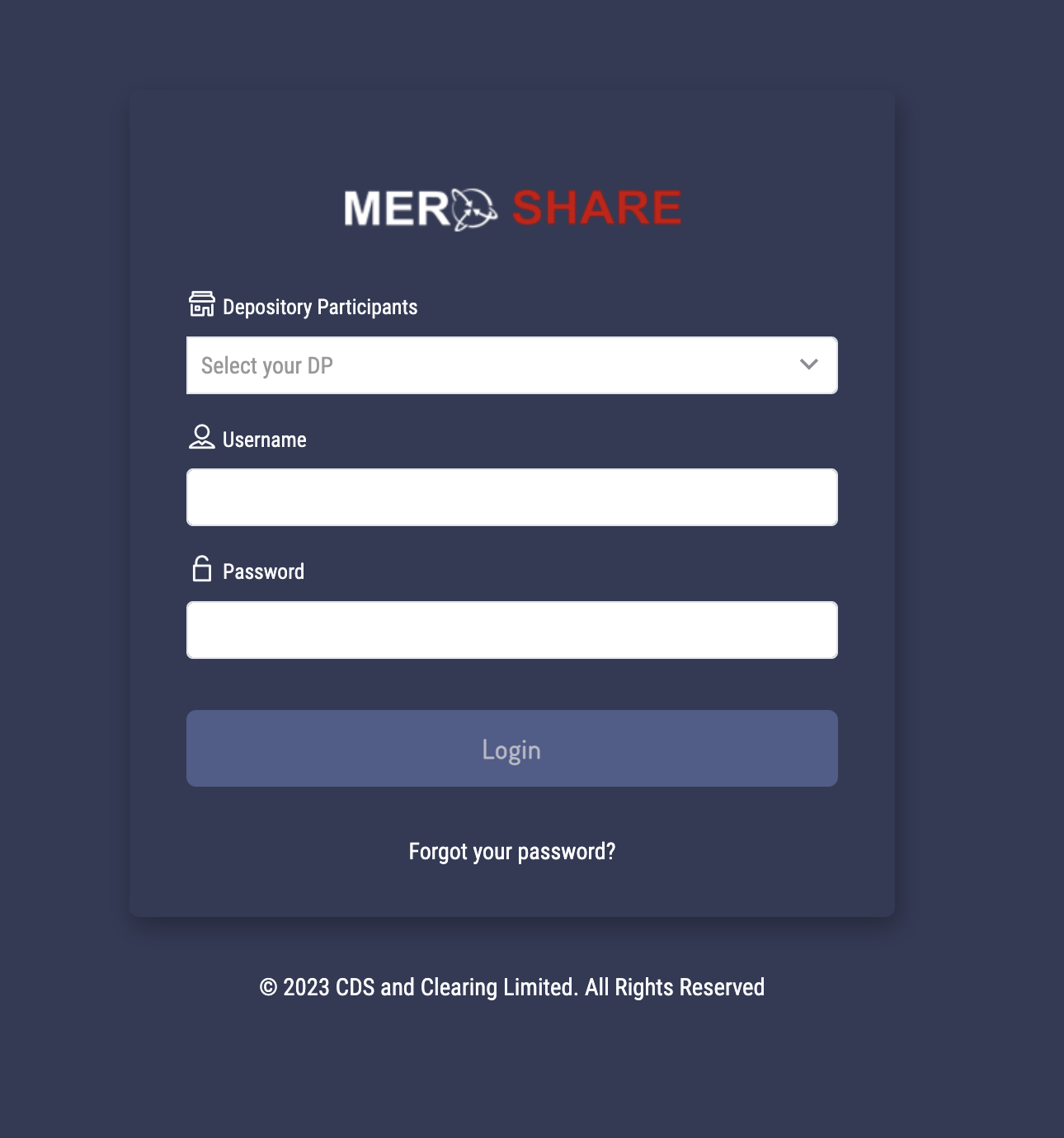
Log in to your Meroshare Account
Start by logging into your Meroshare account using your correct credentials.
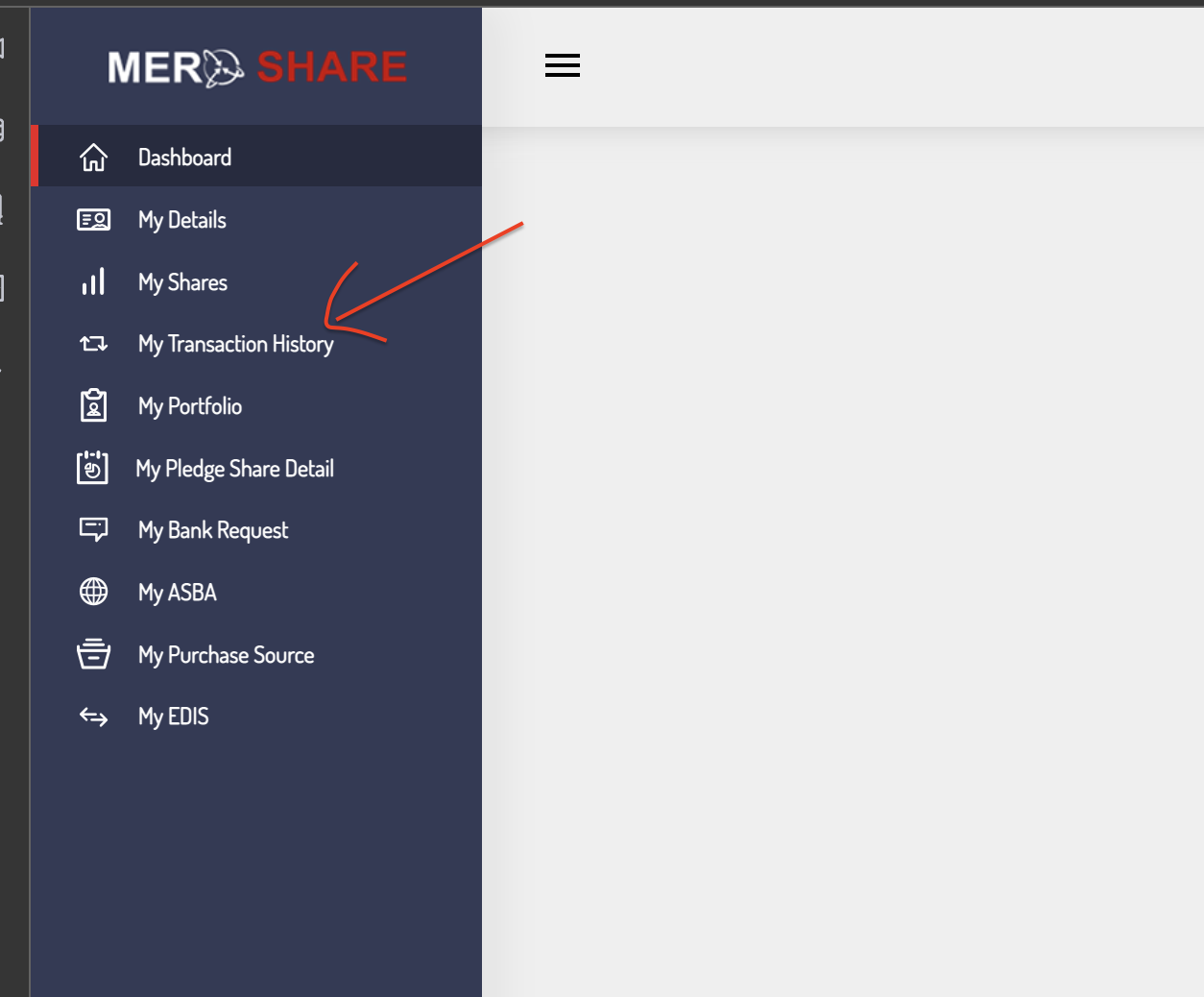
Navigate to My Transaction History
Inside your Meroshare dashboard, go to 'My Transaction History'.
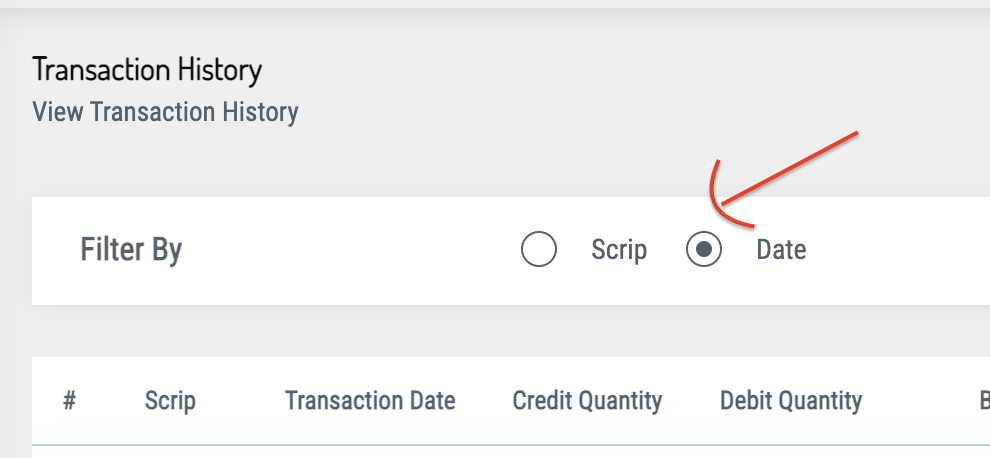
Click on Date Filter Option
Choose the specific date range to view your transaction records.
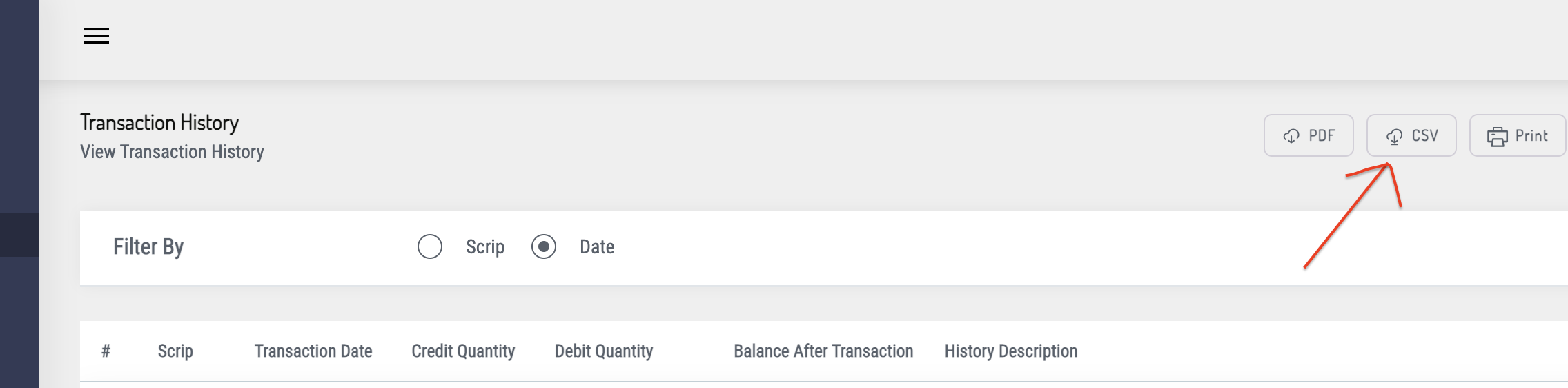
Download CSV File
On the top-right corner, click the CSV download button.
Import the Data Into ShareAlpha
On the ShareAlpha app → Portfolio → Profile → Options → Import from Meroshare.

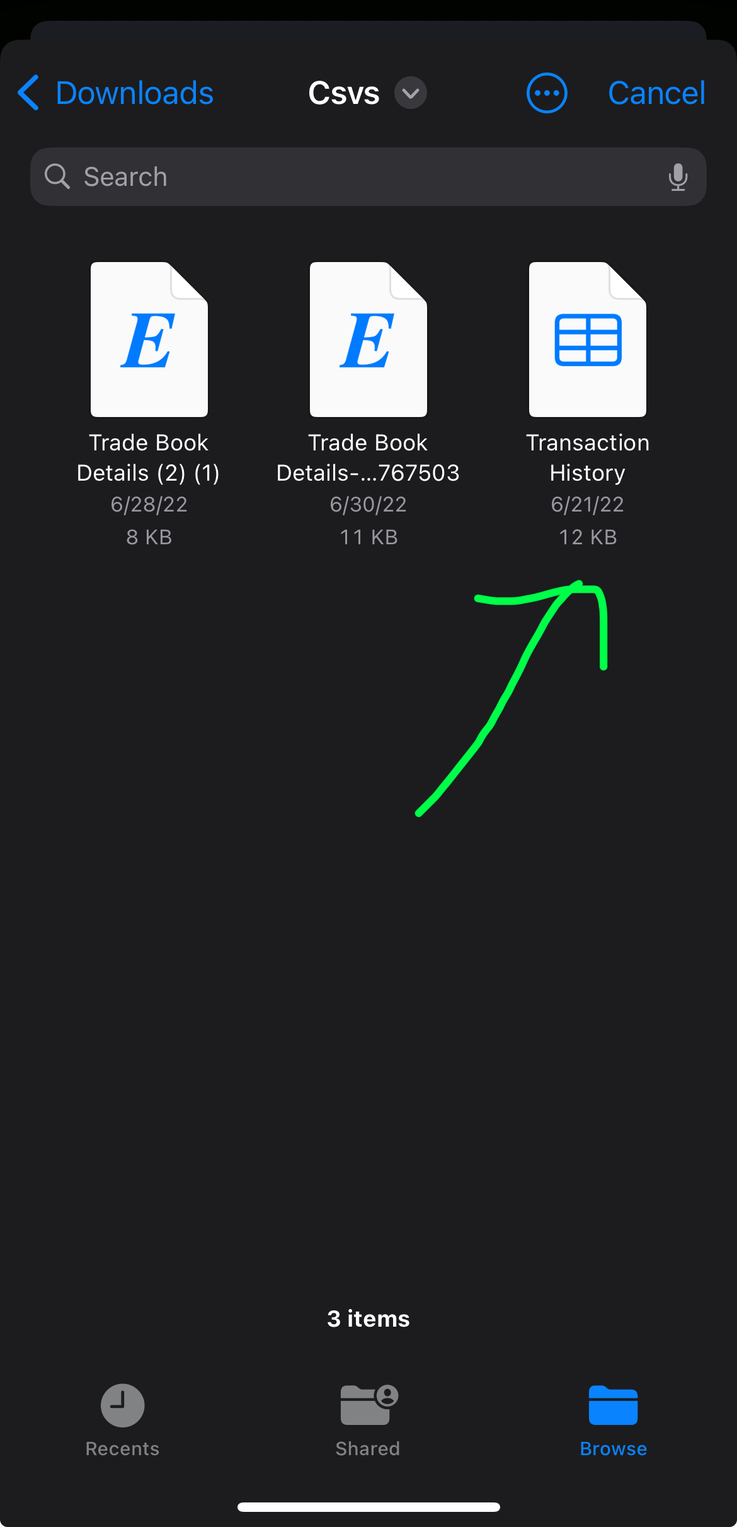
Choose the CSV File
Upload the transaction CSV file downloaded from Meroshare.
Fill Missing Prices
Secondary buy transactions may need manual price entry before import.

All Set
After adjusting missing data, you may import a single scrip or import all.

Need help? Contact ShareAlpha support if you encounter any issues during import.